Wildcard-Only Selection—Download
Download - Of the three Project/File selection methods described here, this is by far the simplest. All that is required is to enter a project wildcard in the Project Select Filter field 1:
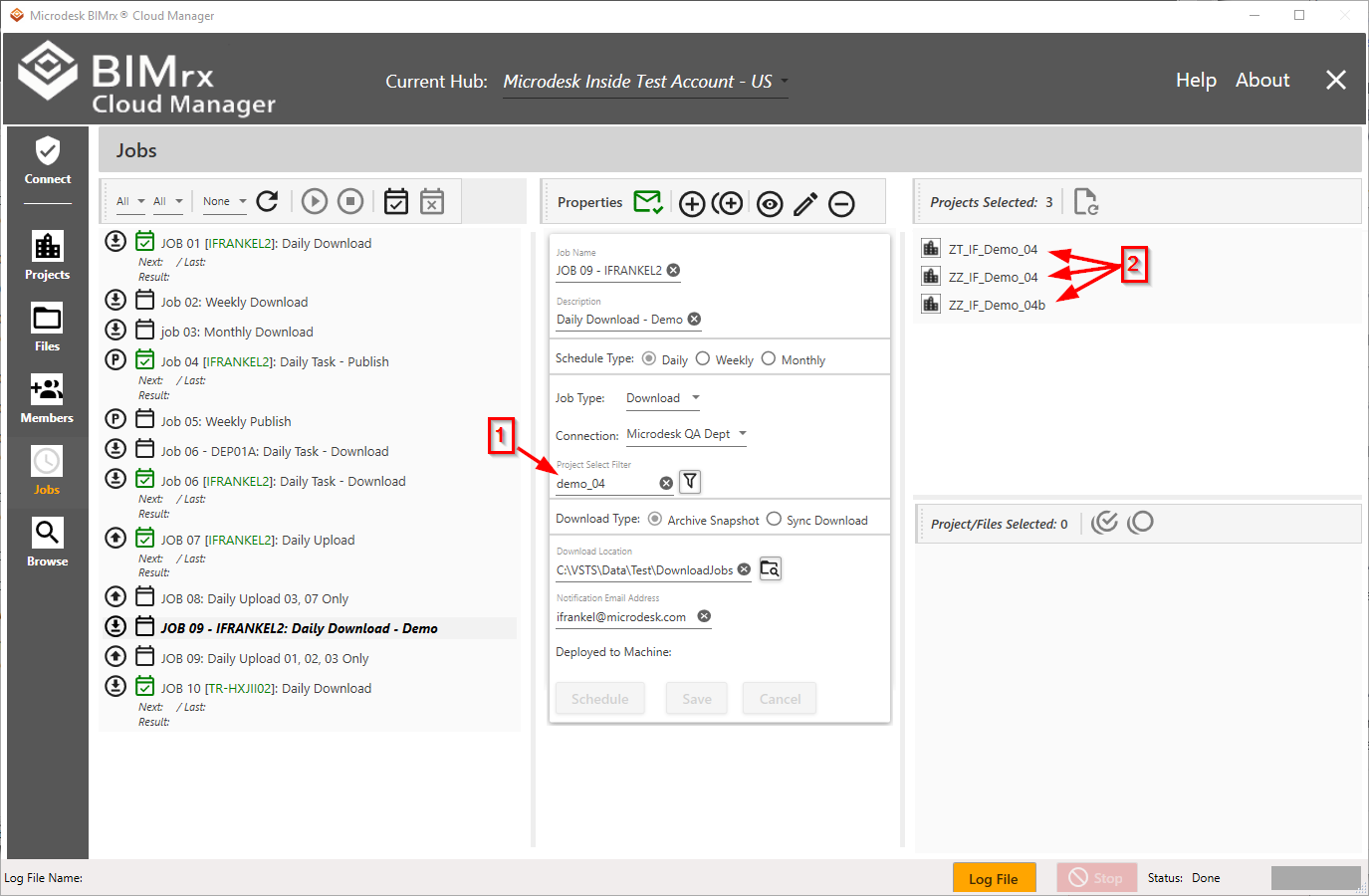
The filter is applied in the usual way by pressing enter or clicking the Apply the current project filter  button. This filtering mechanism works the same here as does with projects and members in the Member screen and projects in the Browse screen. All projects selected by the current filter are displayed on the right-hand Projects Selected pane, along with the number of projects retrieved.
As is the case with all Job definition entries, the Job must be in either Add or Edit mode for changes to be made. Once the changes have been completed, the Job must be saved for the system to store them for deployment or later modification or viewing; or canceled for them to be discarded.
Please Note—Downloads differ from the selection methods employed for Upload and Publish in that it is strictly wildcard-based and involves no individual selection at all. What this means is the wildcard is applied at the time the Job is run and will perform a fresh selection of all projects to which the filter applies at that time. For example, in the above screenshot, 7 projects were found matching the specified wildcard, dev. If a new project is added to BIM 360®, such as ZT_IF_Dev_08, it will also be selected for backup when the Job runs. Keep this in mind, as it could be either powerful and useful—or irrelevant and possibly bothersome—depending on the circumstance.